1General Remarks
Today, digital modulation schemes are widely used in communication systems, and the increasing need for data bandwidth has pushed the signal purity and modulation bandwidth requirements for modern vector signal sources. Other applications with similar performance requirements include radio surveillance, interference analysis, radar signal analysis and electronic warfare.
Addressing these demanding requirements, Berkeley Nucleonics' Model 875 series of vector signal generators (VSGs) provide frequency coverage to 40 GHz and are available as single output desktop units or rack-mount instruments with multiple phase-coherent outputs. The Model 875 series offers a cost-effective and flexible tool for generating high-quality, complex, wideband, digitally modulated signals.
Among others, the following applications are supported:
- Upload multiple formats of IQ Data into Model 875 Memory. The 875 internal AWG can play selected sections of the RAM upon a use trigger.
- Use Model 875 to synthesize and play predefined digital modulation formats.
- Use FCP interface to live stream and play digital IQ data.
- Use the analog IQ inputs with up to 250 MHz IQ bandwidth.
- Use FCP to instantaneously switch between pre-loaded IQ data segments.
- Use FCP to control the Model 875 for ultra-fast frequency hopping.
All Model 875s operate with an ultra-stable temperature compensated frequency reference (OCXO) that can be phase-locked to an external reference.
The compact unit allow for full front panel control via touch panel display, and PC GUI Software supported operation via ETHERNET, USB, FCP (fast control port) and GPIB communication ports.
Validity of this Manual
This manual is valid for the following devices and their derivative versions:
- Model 875 (-X)
2Form Factor
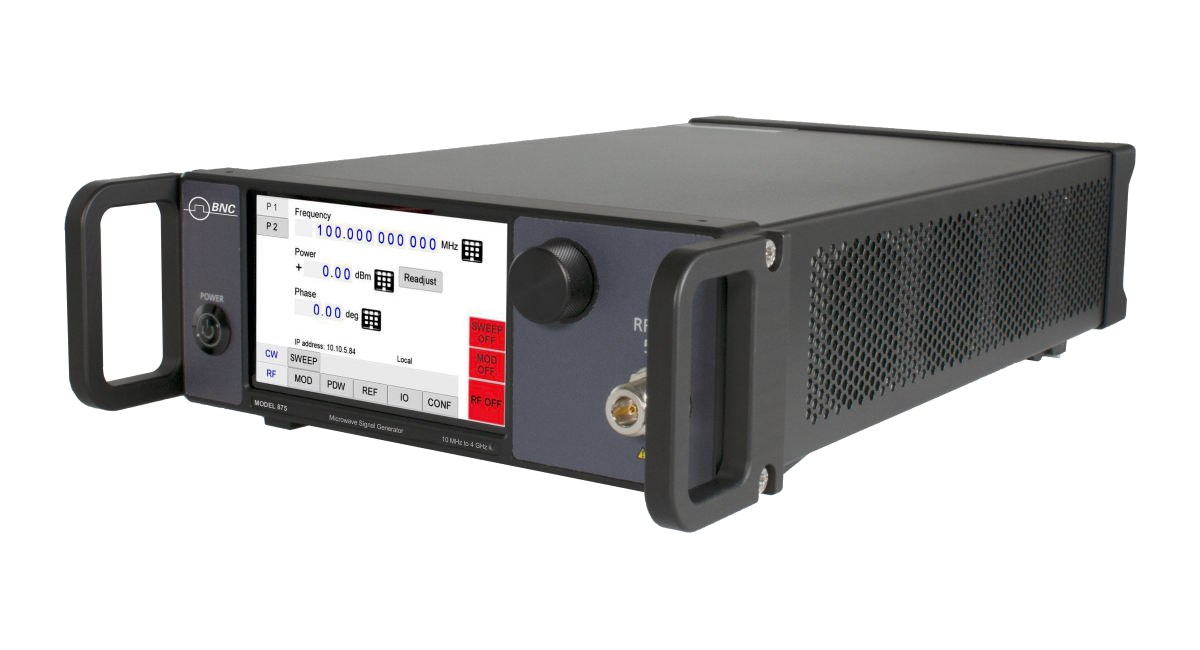
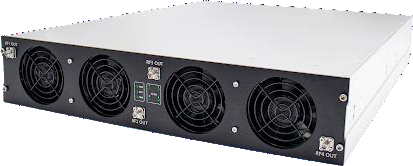
The devices are available in the following chassis:
Desktop Case
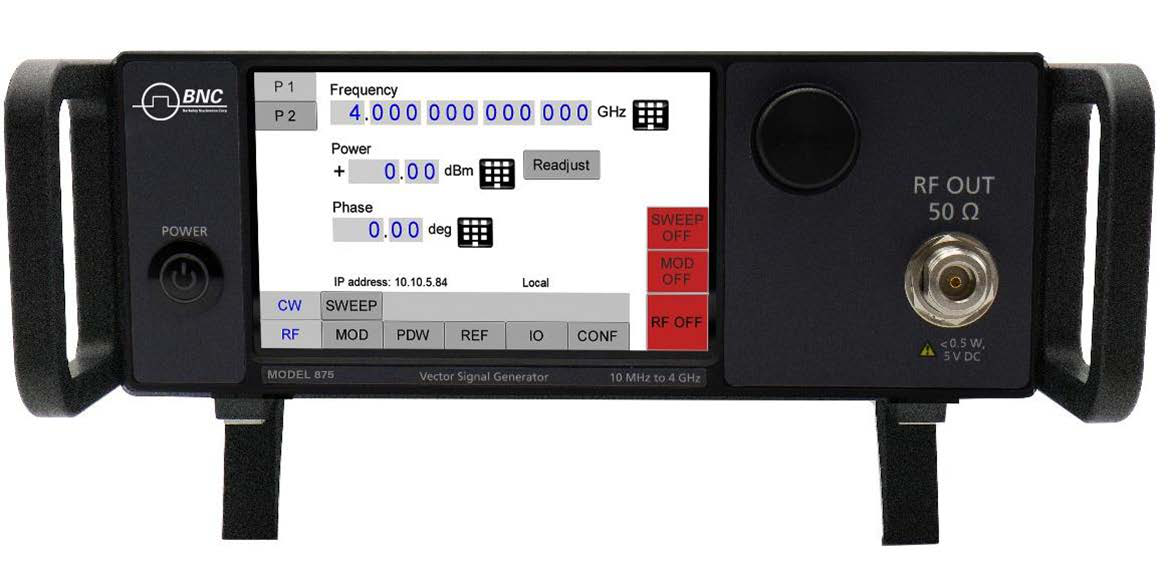
Compact Portable Case
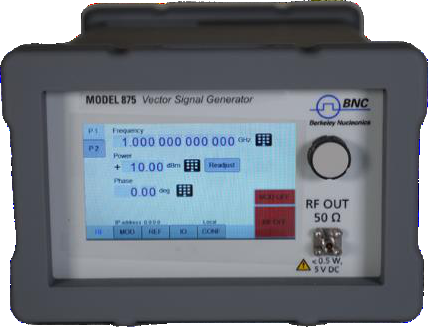
2U Case
Data Connections
The devices may only be connected to a network or a computer by using a shielded LAN cable. Unless shorter lengths are prescribed, a maximum length of 3 m must not be exceeded for the LAN and the USB connection.
Signal Connections
In general, all connections between the signal generator and another device should be made as short as possible and must be well shielded. It is recommended to use a high-quality cable with low loss especially for frequencies above 20 GHz.
Transportaton
The devices must only be transported with the packaging supplied by the manufacturer. The device can be lifted up or transported in any orientation.
3Safety Information
The following pieces of information are important to prevent personal injury, loss of life or damage to the equipment. Please read them carefully. If the device is used in a manner not specified by this manual, the protection provided by the device may be impaired.
Signal Symbol
In this manual, the following symbols are used to warn the reader about risks and dangers.
Labels on Products
The following labels are on the products. Familiarize yourself with the meaning of each of the labels before using the product.
| Label | Meaning |
|---|---|
| DC | Direct Current (DC) |
| AC | Alternating Current (AC) |
| Earth | Earth (Ground) |
| WEEE | EU label for separate collection of electrical and electronic waste. |
| Caution | Caution, general danger zone. Attend the manual and/or a notice on the device. |
General Safey Considerations
FCC notice
This equipment has been tested and found to comply with the limits for a Class A device, pursuant to Part 15 of the FCC Rules. These limits are designed to provide reasonable protection against harmful interference whne the equipment is operated in a commercial environment. This equipment generates, uses, and can radiate radio frequency energy and, if not installed and used in accordance with the instruction manual, may cause harmucl interference to radio communications.
Operation of this equipment in a residential area may cause harmful interference in which case the user will be required to correct the interference at his or her expense.
notice
The instrument meets the EMC directive and the Low Voltage Directive described in the CE declaration in the datasheet.
4Connector View
Front & Rear View — Benthtop with Touch Display
The front panel contains a touch display, RF output female SMA connector (up to 20 GHz), or a K connector (40 GHz devices). The touch display shows information on the current function. Information includes status indicators, frequency and amplitude settings, current connectivity status, and error messages.
Front Panel
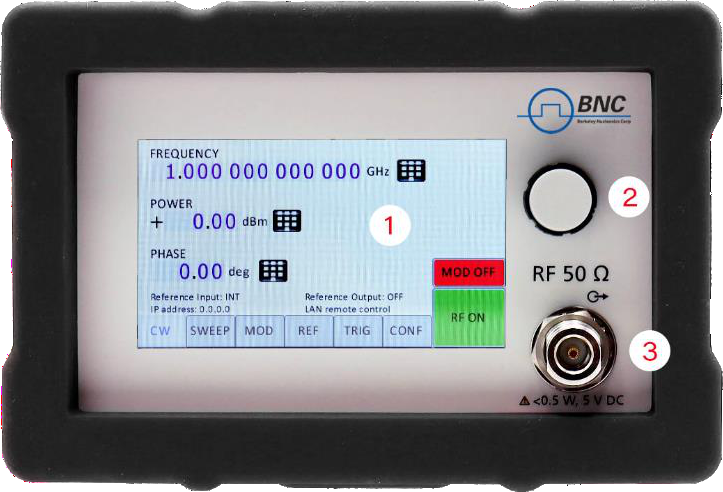
- Main touch display: The main touch display shows information on the current function, such as frequency, power, reference.
- Rotaty Button: The rotary button is used to change the value selected on the screen.
- RF 50Ω connector: This female SMA respectively K connector provides the output for generator signals. Please check the data sheets for more details.
Rear Panel
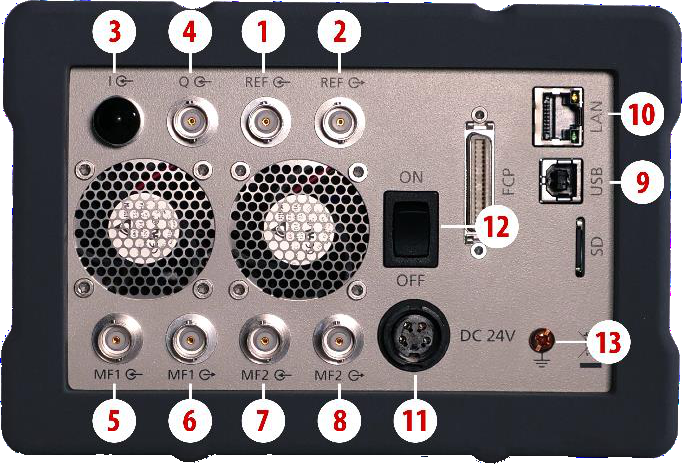
| # | Connector | Description |
|---|---|---|
| 1 | REF input | This BNC female Connector is the input for the reference signal. |
| 2 | REF output | This BNC female Connector is the output of the reference signal. |
| 3 | I input | This BNC female Connector is the input for analog in-phase signals. |
| 4 | Q input | This BNC female Connector is the input for analog quadrature signals. |
| 5 | MF1 input | This BNC female Connector is a multifunction input. |
| 6 | MF1 output | This BNC female Connector is a multifunction output. |
| 7 | MF2 input | This BNC female Connector is a multifunction input. |
| 8 | MF2 output | This BNC female Connector is a multifunction output. |
| 9 | USB B | The USB B connector is used to connect the device to a computer USB port. |
| 10 | LAN | The LAN connector is used to connect the device to a network. |
| 11 | Power Supply | Connector for the BNC power adaptor. |
| 12 | ON/OFF Switch | Turns the device on or off. |
| 13 | Ground Screw | The screw can be used to connect the device to earth ground (if required). |
2U Rackmount
Front Panel
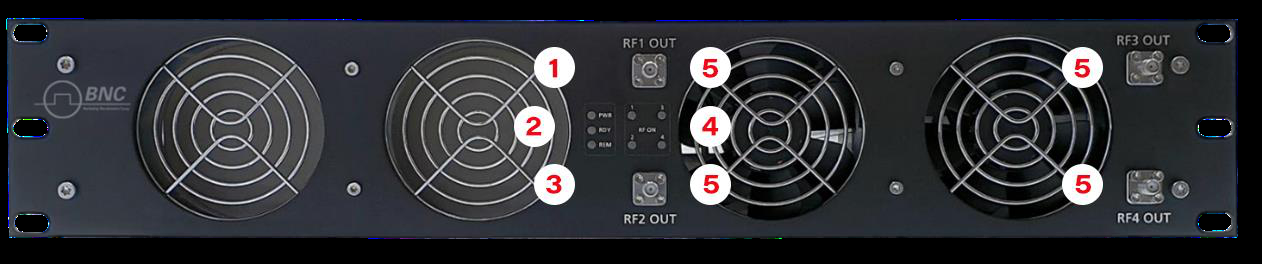
- Power LED: The power LED is indicating whether the device is on or off.
- Ready LED: The ready LED indicates that the boot process is completed and ready to be used.
- Remote LED: The remote LED is indicating whether the device is connected to a Computer or not.
- RF LED [1..4]: This LED indicates whether the RF signal is on or off.
- RF OUT [1..4]: This female K- type respectively SMA connector provides the output for generator signals. The impedance is 50Ω. Please check the data sheets for more details.
Rear Panel
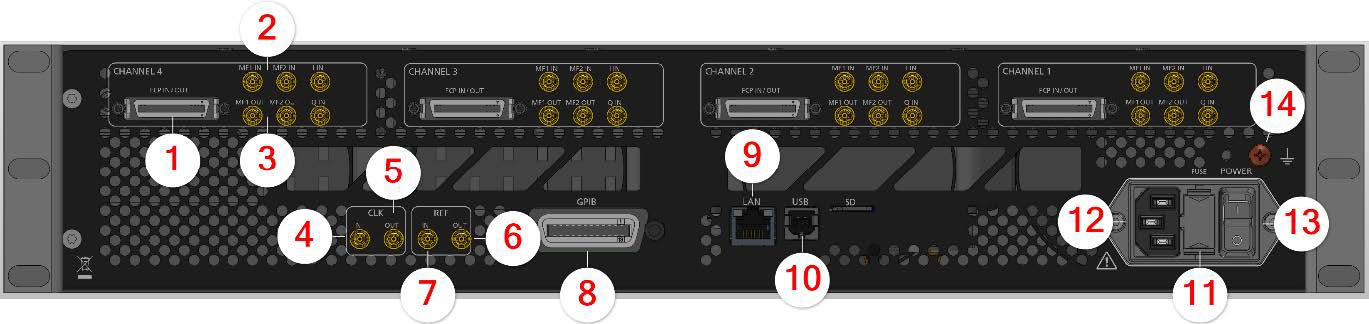
Ports available per RF channel:
| # | Port | Description |
|---|---|---|
| 1 | FCP | Fast Control Port, see application note. |
| 2 | MF input [1..2] | SMB jack is a multifunction input port. |
| 3 | MF output [1..2] | SMB jack is a multifunction output port. |
Ports belong to the instrument:
| # | Port | Description |
|---|---|---|
| 4 | CLK IN | Proprietary port for multi-device synchronization: SMB jack. |
| 5 | CLK OUT | Proprietary port for multi-device synchronization: SMB jack. |
| 6 | REF OUT | This BNC female Connector is the output for the reference signal. |
| 7 | REF IN | This BNC female Connector is the input for the reference signal. |
| 8 | GPIB Connector | With option "GPIB," on this position is the GPIB connector. |
| 9 | LAN | The LAN connector is used to connect the device to a network. |
| 10 | USB B | The USB B connector is used to connect the device USB hub / port. |
| 11 | FUSE Holder | This holder contains an replaceable fuse. |
| 12 | AC Power | Connector for AC power. |
| 13 | ON/OFF Switch | Turns the device on or off. |
| 14 | Ground Screw | The screw can be used to connect the device to earth ground (if required). |
5Minimum Distances & Operating Conditions
Minimum Distances
| Chassis | Minimum distances |
|---|---|
| COMPACT / BENCHTOP CHASSIS | A: 150 mm |
| 1U & 2U | A: 1 mm B: 1 mm C: 50 mm D: 50 mm |
Operating Conditions
Proper operation conditions
The devices are designed for use in dry and clean environents. The COMPACT / BENCHTOP CHASSIS can also be used in field as long as the operating conditions are met. Operation in an environment with high dust content, high humidity, danger of explosion or chemical vapors is prohibited.
In case of condensation 2 hours are to be allowed for drying prior to operation. Operation is only allowed from a 3-terminal mains connector with a safety ground connection and a mains plug used in your specific country.
For sufficient ventilation, ensure open ventilation holes.
Environmental Information
- Waste electrical and electronic equipment must not be disposed of with unsorted municipal waste, but must be collected separately. Contact the BNC customer service center for environmentally responsible disposal of the product.
- Specially marked equipment has a battery or accumulator that must not be disposed of with unsorted municipal waste, but must be collected separately. It may only be disposed of at a suitable collection point or via BNC service center.
6Getting Started
Included Material
Your signal generator kit contains the following items:
- Signal Generator
- Universal power adaptor (AC 100 – 240 V) with corresponding country specific plugs
- Ethernet cable
- Memory Stick with graphical user interface for Windows and documentation
System Requirements
The BNC graphical user interface requires at least the minimum system requirements to run one of the supported operating systems.
| Operating system | Windows™ 7, 8, 10, 11 |
| Remote | 10/100/1000M Ethernet or USB 2.0 Port |
Unpacking the Instrument
Remove the instrument materials from the shipping containers. Save the containers for future use. What is in the box:
- Model 875
- 24V DC Power Supply
- 3 Prong AC Plug
- LAN Cable
Initial Inspection
Inspect the shipping container for damage. If container is damaged, retain it until contents of the shipment have been verified against the packing list and instruments have been inspected for mechanical and electrical operation.
7Starting the Instrument
This section describes installation instructions and verification tests.
Applying Power
Place the instrument on the intended workbench and connect the appropriate DC power supply to the receptacle on the rear of the unit. Make sure you use the included DC power supply.
Press the line on/off switch on the rear panel. If available, the front panel display will illuminate. The instrument will initialize and momentarily diplay the model number, firmware revision and product serial number. The display will then switch to the factory default display setting, showing preset frequency and poewr, phase lock status (of internal reference) and instrument connectivity status (Ethernet IP or USB identifier).
Connecting to LAN
Connect the instrument to your local area network (LAN) using the Ethernet cable. By default, the instrument is configured to accept its dynamic IP number from the DHCP server of your network. If it is configured properly, your network router will assign a dynamic IP number to the instrument which will be automatically displayed on the screen. Your instrument is now ready to receive remote commands.
Direct connectivity to host via Ethernet cable (no router)
You can connect the instrument to your computer with the Ethernet cable without using a local are network with DHCP server. To work properly, the network controller (NIC) of your computer must be set to an IP address following the ZEROCONF standard, beginning with 169.254.xxx.xxx (excluding 169.254.1.0 and 169.254.254.255) and network mask 255.255.0.0 to match the ZEROCONF IP that the signal generator will assign itself after DHCP timeout. Any fixed address in the abovementioned range is admissible as well. The generators ZEROCONF address cannot be predicted as it is assigned dynamically, however the ZEROCONF address assignment process ensures it will not conflict with any other address used in the network.
Connection from a NIC that is configured to use DHCP is also possible. After a pre-set timeout, the NIC will assume that no DHCP is available and self-assign a fallback IP that will fall into the range 169.254.xxx.xxx. Alternatively, you may assign the instrument a fixed IP. Please refer to a later section of this manual to learn how to do this.
Connecting through USB
Connect the (powered on) instrument to the computer using a quality USB type-A to type-B cable. If properly connected, the computer host should automatically recognize your instrument as a USBTMC device.
Alternatively, a VISA runtime environment (NI, Keysight or comparable) must be installed. Use VISA Write to send the *IDN? Query and use VISA Read to get the response. The USBTMC protocol supports service request, triggers and other GPIB specific operations.
Connecting through GPIB
Connect the instrument to the GPIB controller using the rear panel GPIB connector (option GPIB is required). Once connected properly, use VISA Write to send the *IDN? query and use VISA Read to get the response. The protocol supports service request, triggers and other GPIB specific operations.
Installing the BNC Signal Generator Remote Client
BNC's graphical user interface provides an intuitive control of the instruments. It runs under Windows™ operating system with minimum requirements. To install the GUI on the computer, insert the BNC memory stick, double click on the setup.exe to run the auto-installer.
The self-extracting setup provides easy installation and de-installation of the software. The setup program guides you in a few steps though the installation process.
Troubleshooting the LAN Interconnection
Software does not install properly
- Make sure your memory stick is not damaged.
Software cannot detect any instrument
- Make sure you have connected both computer and instrument to a common network.
- If a direct connection is used you may require to reset your computer Ethernet controller (depending on the configuration). Note that in that case detection of the instrument can take a considerable amount of time if your computer is configured to work with an external DHCP server. In some cases the detection may even fail completely. Configure your computer network controller to an appropriate fixed IP instead.
- Make sure that your software firewall enables the GUI to setup a TCP/IP connection via the LAN. Under Windows 7/10 you can do that like this: Open Control Panel under Settings in your Start menu. Then go to Windows Firewall. Click on Exceptions and then add Program. If the GUI is in this list, choose it and click OK otherwise you have to browse for the path to GUI installation directory. Finally close all open dialogs with OK. Now your Windows™ Firewall will not block requests from the GUI.
Shutting Down the Signal Generator
Press the line on/off switch on the rear panel to off.
Replacing the Fuse
The 2U chassis has a fuse, accessible from the outside. To change the fuse, pull out the mains plug and pull the fuse holder out. Replace the old fuse with a new one. It is unsafe to repair burnt fuses or bridge two side by any means. Use only a new fuse with the same specifications.
8Using the Graphical User Interface (GUI)
BNC's graphical user interface provides an intuitive control of the signal generator. It runs under any Windows™ operating system. Make sure the software is installed correctly and the computer's firewall is configured properly.
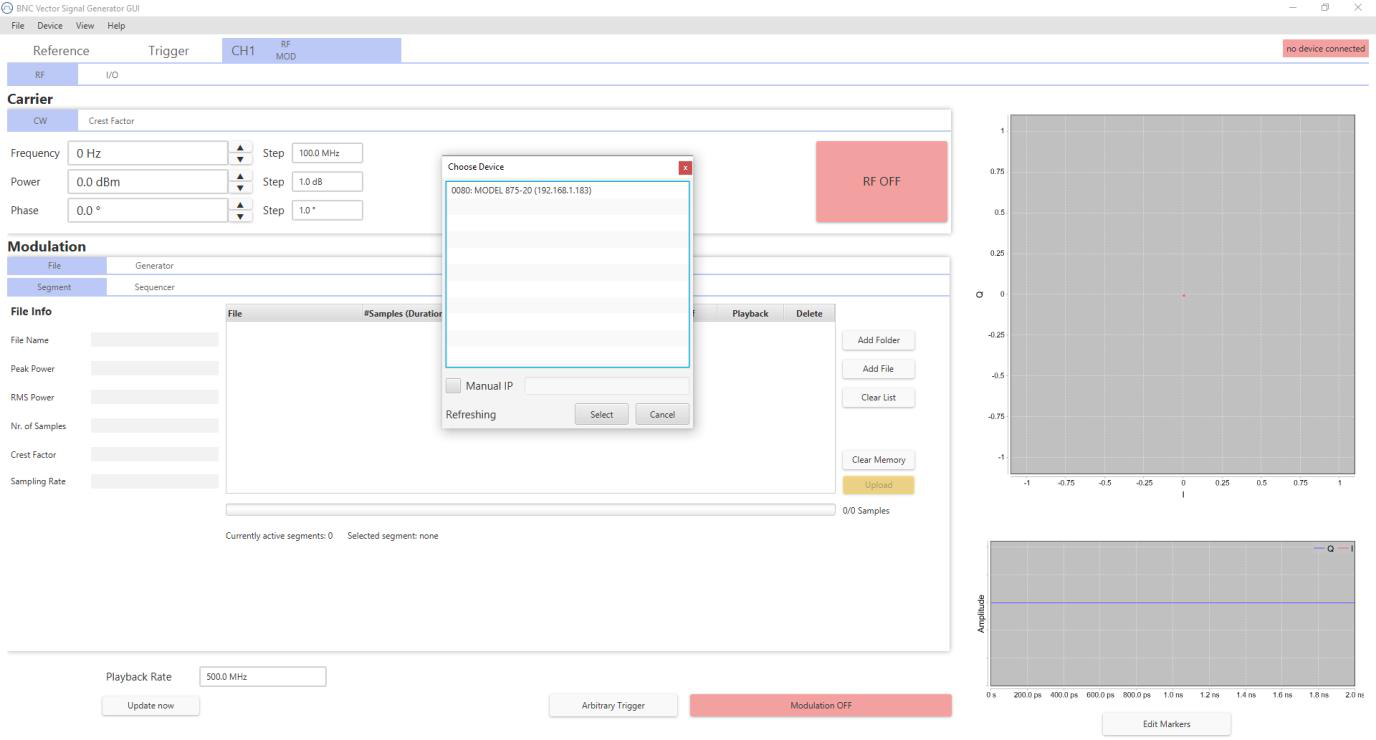
Launch Vector Signal Generator GUI
After successful installation of the sofware, double-click the sofware shortcut that has been created on your desktop.
After launching, the GUI will automatically detect existing BNC instruments that are connected to the computer (network) via local area network, USB, or GPIB. In the CONTROL tab, the detected instruments are listed. Clicking on one of the devices will instantly establish connection. Clicking on an alternate device will disconnect the old device and reconnect to the new device.
Simultaneously controlling Multiple Signal Generators from one PC
You can easily control multiple BNC instruments from a single computer but you need to start a separate GUI instances for every instrument as only one instrument is controlled by the GUI at once.
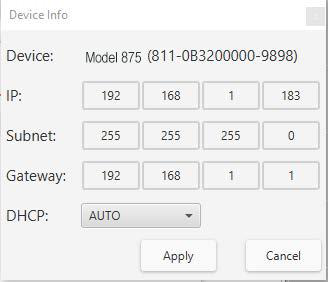
Setting Network Configuration
The Network Configuration button allows configuring the LAN settings as shown in Figure 8. You may choose from three distinct network addressing modes: setting to Auto will check for a DHCP server on the network, but if this fails, will fall back to assigning an address automatically using zeroconf. Setting to DHCP will check for a DHCP server on the network with no fallback option if one doesn't exist. Setting to manual will require the user to supply all network settings for the device manually below. Additionally, the device name can be modified as desired. The unit serial number and firmware revision are displayed at the bottom of the dialogue box.
Multi-Session Option
The 'Multi-Session' checkbox can be selected to enable the device to be accessed from more than one instance of the UI. This enables users on multiple computers on the network to connect to and configure the device simultaneously. It is the user's responsibility to manage access conflicts whilst this mode is enabled (i.e. 2 users changing the same option from different PCs).
Device Port Setings
The 'Port' option allows the listing TCP port to be customized for the device. The default setting for all devices is port 18. If changed, the device will no longer be accessible using this port number. Any instances of the UI (or other VISA applications connecting to the device over a network) will need to modify their destination port number to match the device to connect to.
Connecting to devices using a non-defualt port
There are 2 options for connecting to a device when its default listening port has been changed.
1. Specify a temporary connection port
Click the menu 'Info' -> 'Connection Settings' -> 'Specify Connection Port'. This will cause a new setting 'Custom Port' to be displayed on the 'Control' tab of the UI (see figures 6-d and 6-e). The connection port to use can then be entered (within the range of permissible TCP port numbers). Beware that this setting will overwrite the default port until it is removed. To remove, select 'Specify Connection Port' again – this will remove the 'Custom Port' setting from the UI and revert to using the current default port. Deleting the port number from the 'Custom Port' text box will also cause the UI to revert to using the default port.
2. Change the application's default port setting
The global default port to use for connections can be changed by selecting menu 'Info' -> 'Connection Settings' -> 'Change Default Port' (see figure 6-d). A default port can be entered into the dialog box which appears and set by clicking button 'Set Default' – only permissible TCP ports can be entered here. If the new default port is accepted, the '[Default=]' text above will display the new setting. Beware that the new default setting will now persist until changed again – including after restarting the UI or rebooting your system.
Setting the GPIB Address
If the instrument has the GPIB option installed, the GPIB address can be changed in the GPIB submenu in the control tab. Valid GPIB addresses range from 1 to 30.
To verify GPIB functionality, use the VISA Assistant available with the Agilent IO Library or the Getting Started Wizard available with the National Instrument IO Library. These utility programs enable you to communicate with the signal generator and verify its operation over GPIB. For information and instructions on running these programs refer to the Help menu available in each utility.
Firmware Update
A firmware update of the instrument can be done directly via the GUI. First make sure you are connected to the right instrument and have the correct firmware binary file (.tar) ready. Then apply Controller -> Update Firmware and select the appropriate binary file that you have received from BNC or downloaded from the BNC download site. The update will take a few seconds to a minute and your instrument will reboot upon completio. You will need to reconnect to the instruments after booting is completed.
9Local Operation via Front Panel
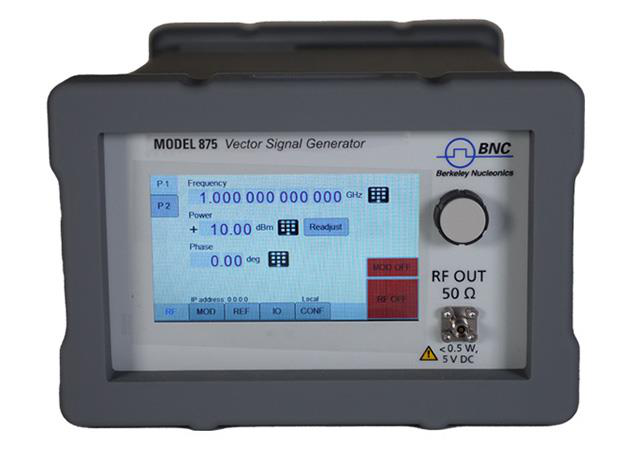
The currently active display position is shown by the cursor (underline symbol, or different background colour). The cursor does not move beyond the field of the currently selected parameter. Rotate the front panel knob to modify the value. Clockwise rotation increases the parameter and counter-clockwise rotation decreases the parameter. The parameter value will continue to increase or decrease by the amount of the selected resolution until it reaches the maximum or minimum limit of the parameter.
Displayed Parameters Formats
The following sections describe how to control the instrument via the front panel control by invoking various menu functions.
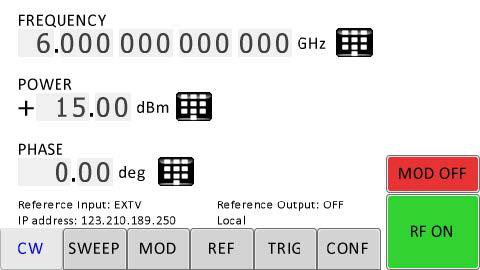
CW Display
The Main or CW Display is shown after the instrument has successfully booted and is ready.
10Modulaton Submenus
Pulse Modulation Submenu
In the Pulse sub-menu the internal pulse modulator can be controlled.
Amplitude Modulation Submenu
In the Amplitude Mod submenu the internal amplitude modulation can be accessed.
Frequency Modulation Submenu
In the frequency modulation submenu the internal and external frequency modulation can be accessed.
Phase Modulation Submenu
In the phase modulation submenu the internal and external phase modulation can be accessed.
Reference Submenu
In the reference sub-menu the input and output for clock reference can be set.
Trigger Submenu
After accessing the Trigger menu, use the rotary knob to toggle the selected entry value or to change selected digit. The display shows up as following.
LAN Configuration Submenu
In the LAN Configuration menu, IP address, subnet mask and DHCP can be configured.
Display Settings Submenu
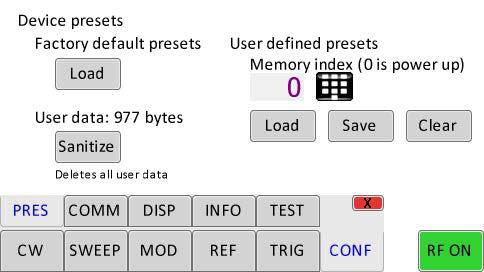
Help Submenu
This submenu provides basic information about the front panel menu control.
11Remote Programming the Signal Generator
The signal generator can be remotely programmed. Please refer to the Programmer's Manual for details.
12Maintenance and Warranty Information
Adjustments and Calibration
To maintain optimum measurement performance, the instrument should be calibrated every 24 months. It is recommended that the instruments be returned to BNC or to an authorized calibration facility. For more information please contact us on our website portal: www.berkeleynucleonics.com/rma-form
Repair
The signal generator contains no user-serviceable parts. Repair or calibration of the signal generator requires specialized test equipment and must be performed by BNC or its authorized repair specialists. Use BNC RMA request form www.berkeleynucleonics.com/rma-form
Warranty Information
All of BNC's instruments are warranted against defects in material and workmanship for a period of two years from the date of shipment. BNC will, at its option, repair or replace products that prove to be defective during the warranty period, provided they are returned to BNC and provided the preventative maintenance procedures are followed. Repairs necessiteated by misuse of the product are not covered by this warranty. No other warranties are expressed or implied, including but not limited to implied warranties of merchantability and fitness for a particular purpose. BNC is not liable for consequential damages.
Equipment Returns
For instruments requiring service, either in or out of warranty, contact your local distributor or BNC Customer Service Department at the address given below for pricing and instructions before returning your instrument.
When you call, be sure to have the following information available:
- Model number
- Serial number
- Full description of the failure or condition
You will get a Return Merchandise Authorization (RMA) number from BNC, please put it on the outside of the package.
Instruments that are eligible for in-warranty repair will be returned prepaid to the customer. For all other situations the customer is responsible for all shipping charges. An evaluation fee may be charged for processing units that are found to have no functional or performance defects.
For out of warranty instruments, BNC will provide an estimate for the cost of repair. Customer approval of the charges will be required before repairs can be made. For units deemed to be beyond repair, or in situations where the customer declines to authorize repair, an evaluation charge may be assessed by BNC.
13Document History
| Version | Date | Author | Notes |
|---|---|---|---|
| 1.0 | 23.3.2021 | AH | Initial Version |
14Contact Us
Berkeley Nucleonics Corporation
2955 Kerner Blvd.
San Rafael, CA 94901, United States
Phone: (415) 453-9955
Email: info@berkeleynucleonics.com
Web: www.berkeleynucleonics.com
Model 875 User Manual · Document Version Number: 1.0 · Print Code: 42023210